
Author: sgeorge, Posted on: 14 May 2026 15:26
So, there is this myth on the internet that you need to have a really old PC with one of 3 kinds of old network adapter to use the Cobalt Recovery CD
(and I can understand that belief, its what the logon screen says!)
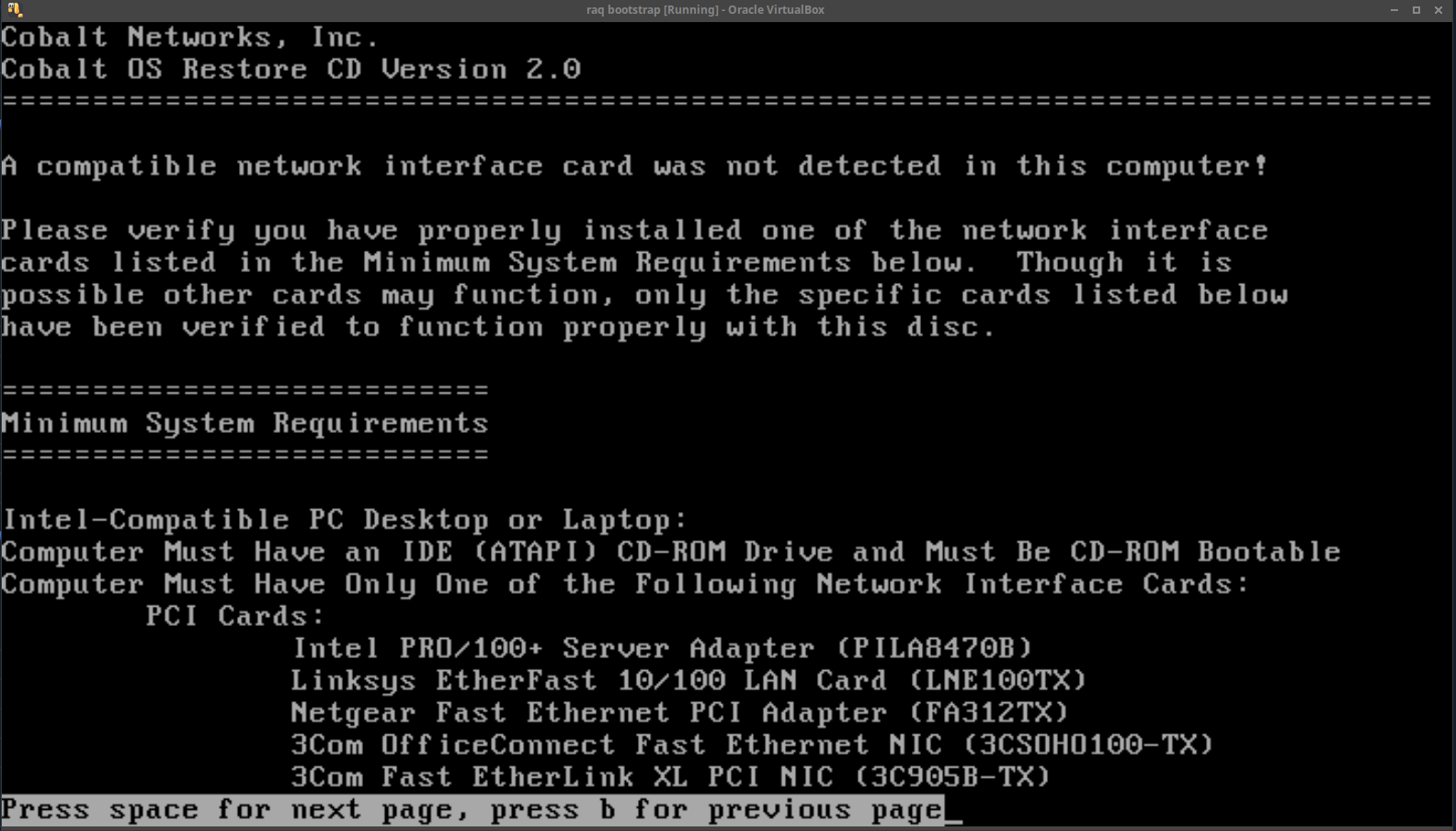
but Cobalt/SUN are lying to you! You CAN use VirtualBox because the rescue image supports many more network cards than it tells you about.
You can use the following modules if you have a real, old NIC laying around, but for VirtualBox we only care about pcnet32!
3c501, 3c503, 3c509, 3c515, 3c59x, 82596, 8390, at1700, cs89x0, de4x5
depca, dgrs, e2100, eepro, eepro100, eexpress, ewrk3, fa312, fmv18x, hp-plus, hp, hp100
lance, ne, ne2k-pci, ni52, ni65, old_tulip, pci-scan, pcnet32, sis900,
smc-ultra, smc-ultra32, smc9194, tlan, tulip, via-rhine, wd
You will need your recovery ISO, and either a crossover ethernet cable or two ethernet cables and a switch (easier to use one not connected to anything else, just your VirtualBox host and the cobalt).
NOTE: You can't do this with the really old recovery image listed as v1.1.
My workstation has two ethernet devices, so one keeps me on the normal network, the second I use as a crossover to the Qube 2.
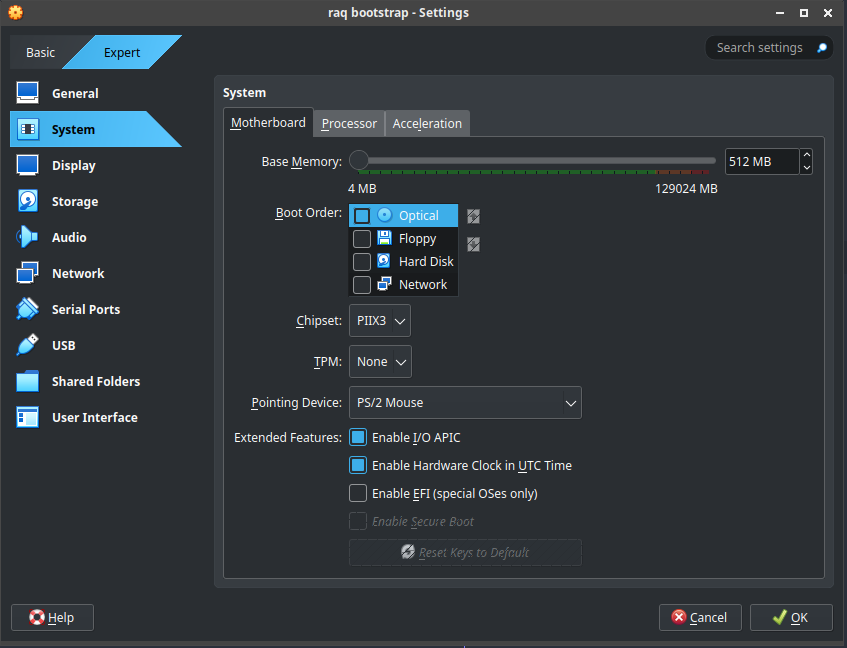
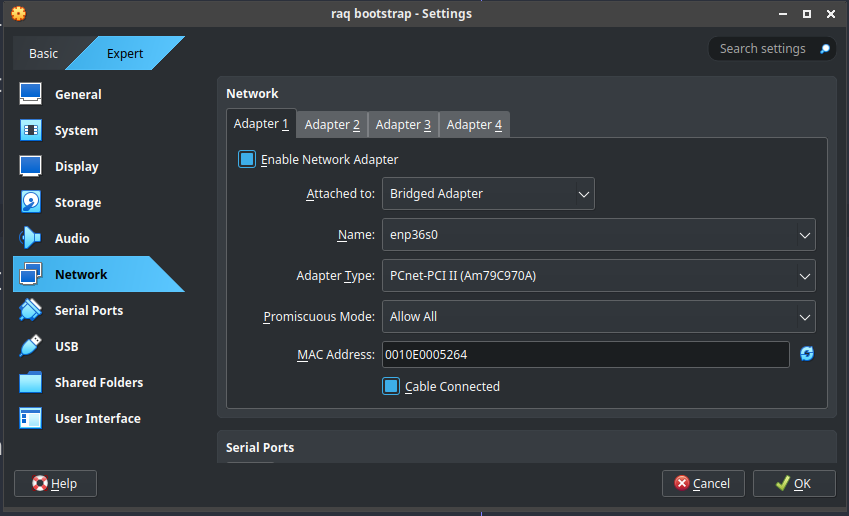
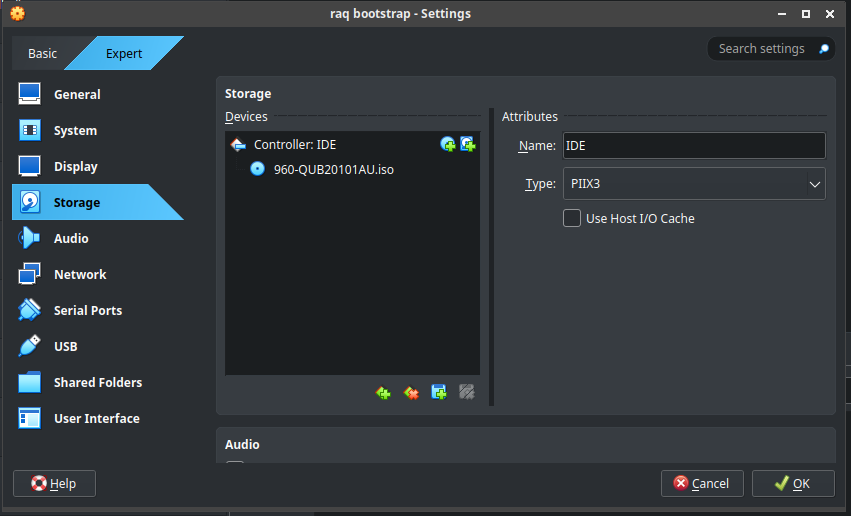
Once you have that setup, make note of which physical ethernet device your going to use, because we need to turn all its features off (to work better with VirtualBox).
(I had to disable network offloading for VirtualBox to correctly see my nic). Here I'm using enp36s0 as my chosen ethernet device.
(I did this under Linux, on Windows/Mac I dont know if you need/or how to do, the following step)
sudo ethtool -K enp36s0 rx off tx off tso off gro off lro off macsec-hw-offload off
sudo ethtool -K enp36s0 hw-tc-offload off tx-gso-partial off generic-segmentation-offload off
sudo ethtool -K enp36s0 rx-vlan-offload off tx-vlan-offload off rx-vlan-filter off
sudo ethtool -K enp36s0 receive-hashing off ntuple-filters off scatter-gather off
You can run "ethtool -k enp36s0" (lowercase k) to see the status of things, find anything with an "on" thats not "fixed", and turn it off. (This was a key for me to get things working).
Boot into the system on VirtualBox, and you will be greeted with the EULA.
Type yes to agree to license.
It will display you dont have a compatible system message. By default the network adapters are not loaded but are present, so we need to install one.
Type (including the bang at the start)
!insmod /lib/modules/2.2.16/net/pcnet32.o
(tab completion works here too).
This will load the PCnet driver, now we need to bring it online by force giving it an IP address and netmask within the subnet its handing out.
type
!ifconfig eth0 10.0.0.254 netmask 255.0.0.0 up
The recovery CD is setup to give out IP address in range of 10.0.0.150 to 10.0.0.160.
Now press 'q' and it will reload the message into the successful message, follow instructions for how to netboot your device. (It will take a while to restore).
And awaaaay we go
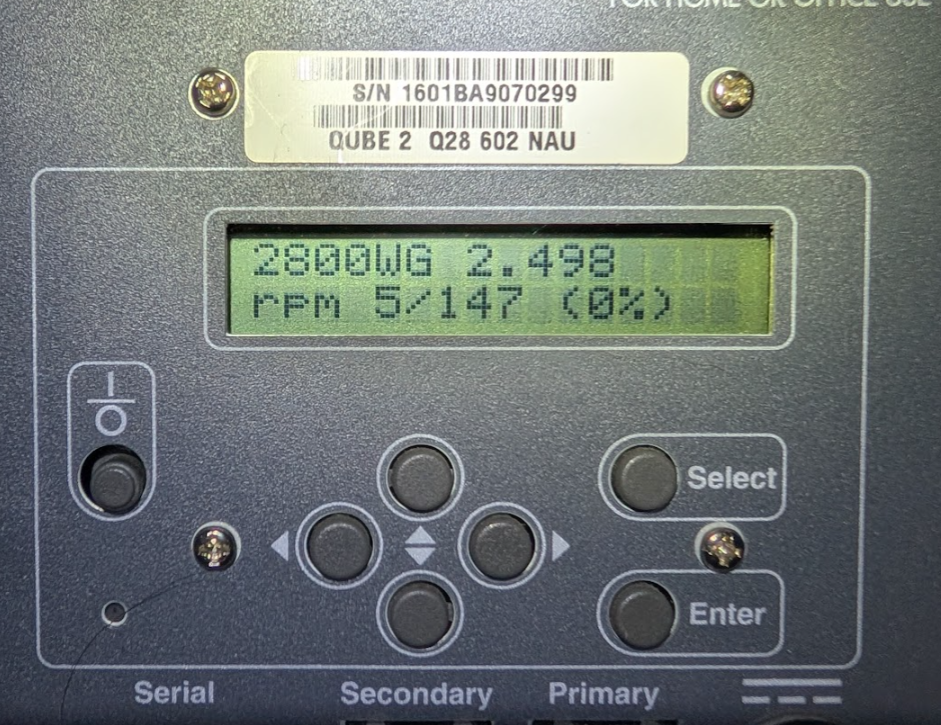
Things to note, if you have a MIPS box, you can't use any of the intel recovery cd's, as they will push an intel kernel over the wire and the box will crash.
You can boot into single user mode and look around with
!/etc/init.d/single
To see if the netboot has started you can type
!arp
And it should spit out something like;
Address                 HWType   HWAddress             Flags  Mask     Iface
lease150.mfg.cobaltmicr ether    00:10:E0:00:1E:7E     C               eth0
If you are not sure if the system is doing anything (some things take A LONG time to run), you can run
!netstat -i
to watch the tx/rx packet counts. You should be seeing a change in TX-OK packets
Also, I did this on a 256gb SSD, and I'd REALLY recommend something in the size of 16gb or 32gb, because when you boot up it takes HOURS to do a disk check, then a quota check.. Small drives are your friend (or sd/cf cards!).
Entry too old for new comments.